Quick Start
Setting a Log Directory
Section titled “Setting a Log Directory”Upon opening the application, BARAS will ask you to set a default log directory if the application is not able to find any combat logs.
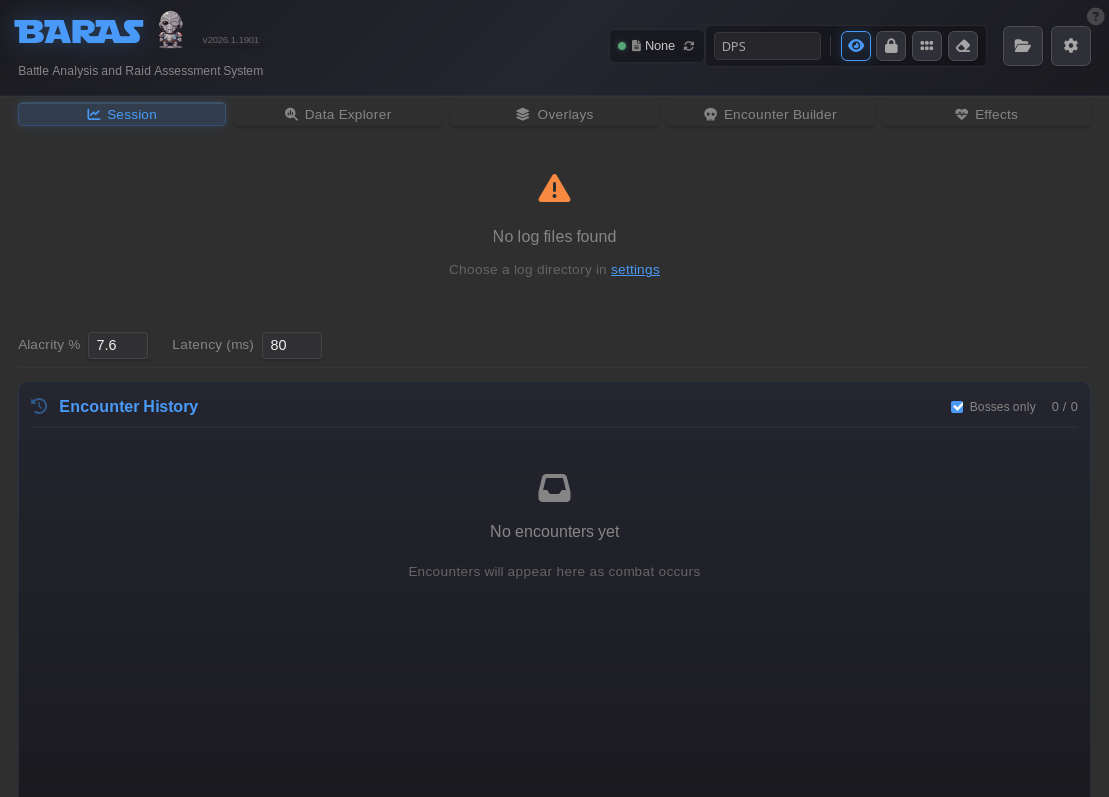
Click the either the settings hyperlink or the ⚙️ in top right corner to open the application’s global settings menu.
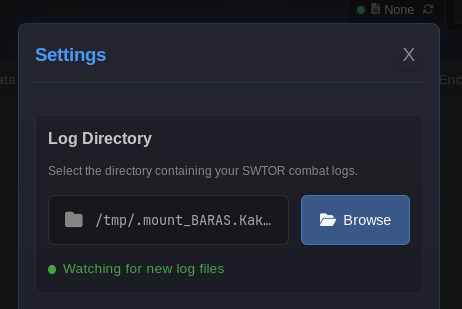
Select your SWTOR Combat Logs directory. BARAS will automatically detect and begin parsing ang log file.
Live Mode
Section titled “Live Mode”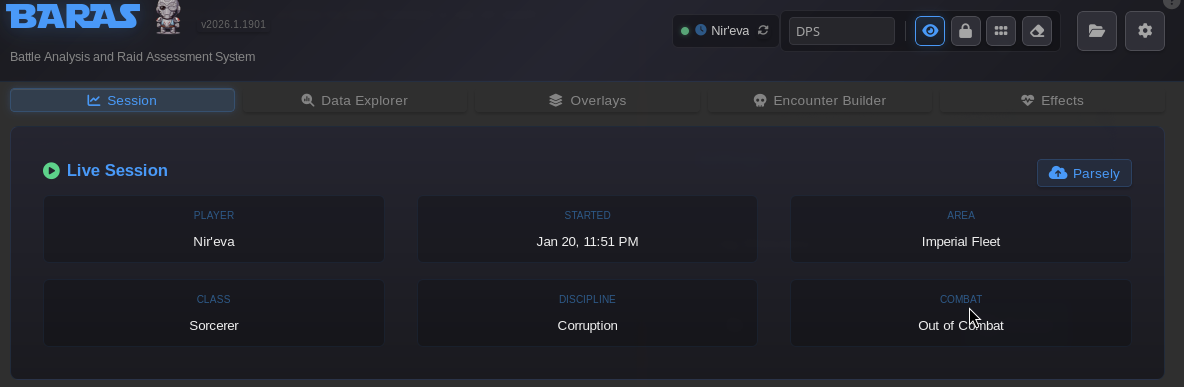
A green dot 🟢 next to the character name at the top of the applicatioin indicates that BARAS is actively monitoring the latest file in the directory and will parse new data as it appears.
Setting Up Overlays
Section titled “Setting Up Overlays”Enabling Overalys
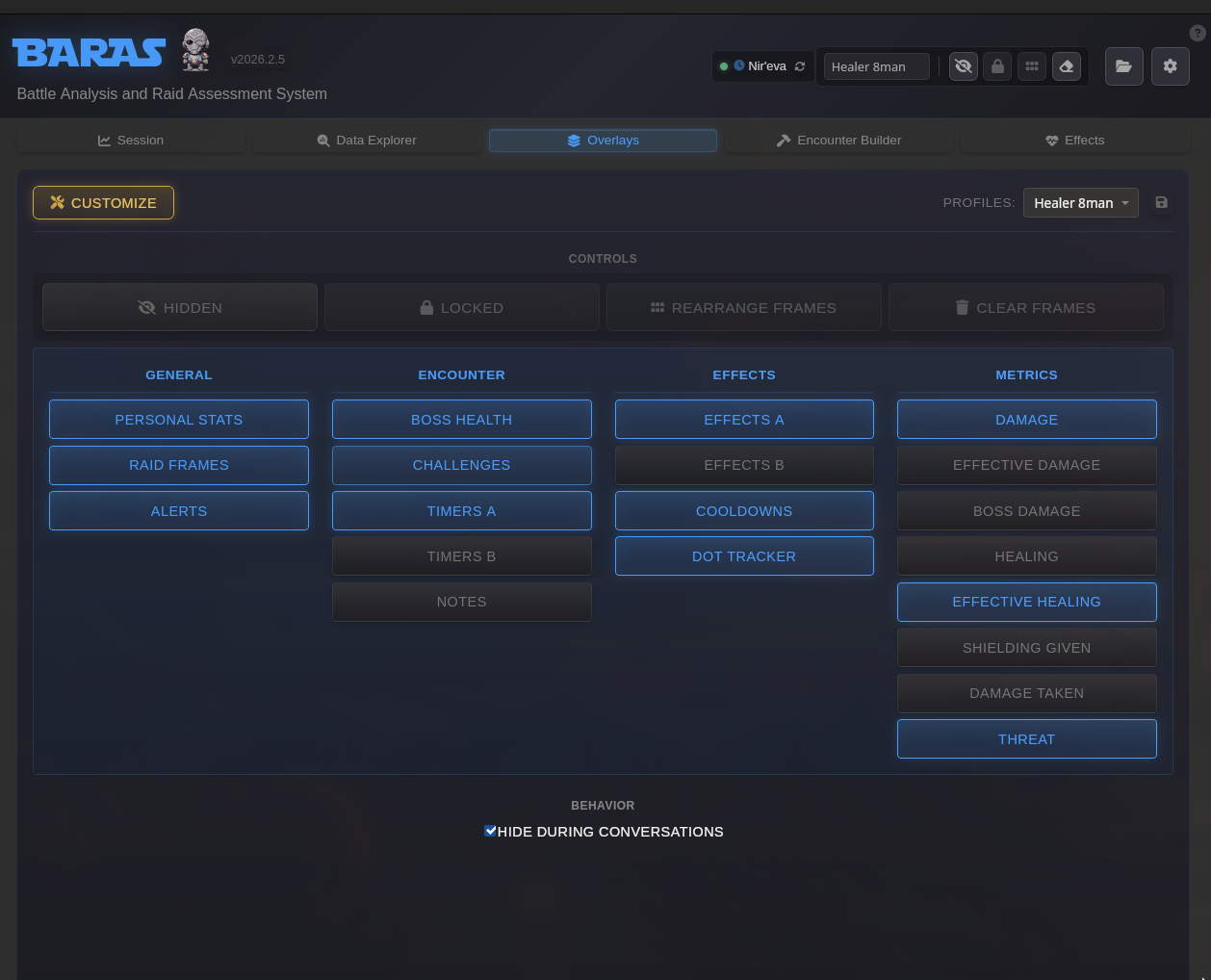
Section titled “Enabling Overalys”Navigate to the Overlays tab in order to view overlays options.
By default all overlays are disabled. Click any overlay button to enable it. Once at least one overlay is enabled you can toggle it’s visiblity state by clicking Hidden. You should see the button change to visible.
Moving Overlays
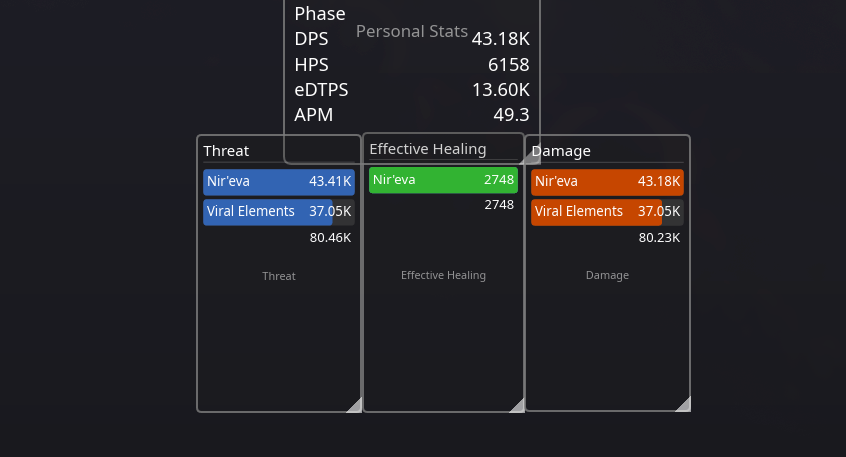
Section titled “Moving Overlays”Click the Locked button in order to toggle Move Mode. Once in move mode all enabled overlays will change their appearance to semi-transparent with a grey border.
Click anywayer on the overlay to drag it to the desired posistion. Click and drag the handle in the bottom right corner to resize.
Customizing Overlays
Section titled “Customizing Overlays”Overlay’s appearance and settings can be customzied by clicking the Settings button at the top left of overlay page.
Overlay profiles can also be set here.