Parsely Upload
BARAS integrates with Parsely.io, a community tool for sharing and comparing SWTOR combat logs. You can upload entire log files or individual encounters directly from BARAS.
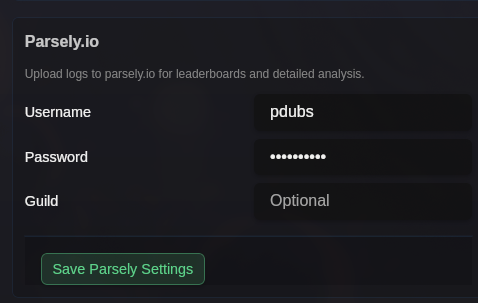
Configure your Parsely credentials in the Settings tab under the Parsely section. All fields are optional — you can upload anonymously without an account.
| Field | Description |
|---|---|
| Username | Your Parsely.io username |
| Password | Your Parsely.io password |
| Guild | Guild tag to associate with uploads |
Uploading an Entire Log File
Section titled “Uploading an Entire Log File”Upload a complete combat log file from the Log Files sidebar:
- Click the cloud upload icon next to any log file in the sidebar
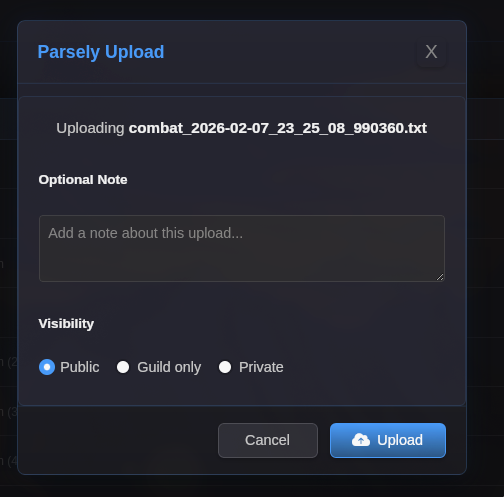
- The upload modal will appear showing the file name
- Set visibility and add an optional note
- Click Upload
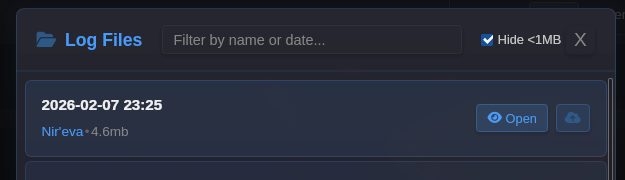
You can also upload from the Session header bar using the Parsely button when a log file is active.
Uploading a Single Encounter
Section titled “Uploading a Single Encounter”Upload a specific encounter from the History tab:
- Navigate to the History tab
- Find the encounter you want to upload
- Click the cloud upload icon on the encounter row
- Set visibility and add an optional note
- Click Upload

After a successful upload, the encounter row will display a clickable link to view it on Parsely.
Upload Options
Section titled “Upload Options”The upload modal lets you configure two options before uploading:
Visibility
Section titled “Visibility”| Option | Description |
|---|---|
| Public | Anyone can view the log on Parsely |
| Guild only | Only members of your guild can view it |
| Private | Only you can view the log (requires an account) |
Add an optional text note to describe the upload (e.g., “Dxun HM prog night” or “Clean Styrak kill”).
After Uploading
Section titled “After Uploading”- A toast notification appears with the Parsely link on success
- For encounter uploads, the link is saved and displayed inline in the History tab
- Click the link to open the log on Parsely in your browser
- If the upload fails, an error message will explain what went wrong