Overlay Profiles
Overlay Profiles
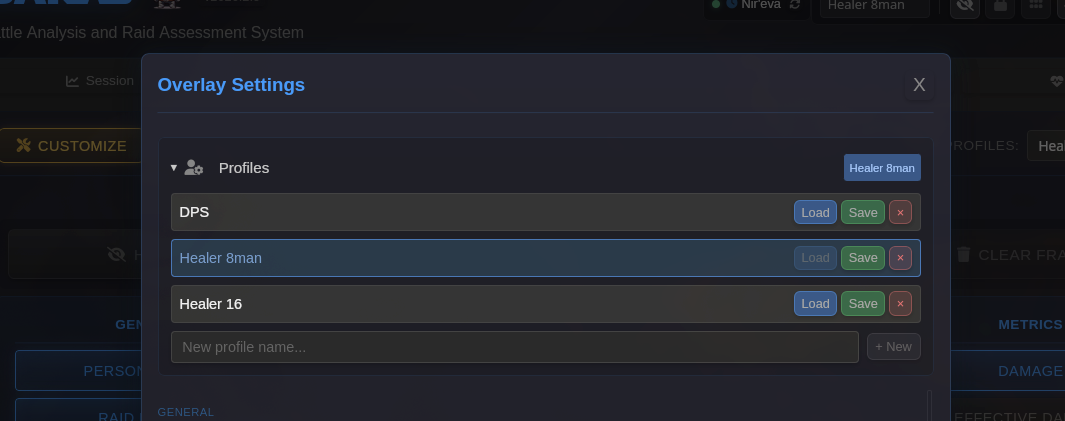
Section titled “Overlay Profiles”Profiles let you save and switch between different overlay configurations. This is useful when you play multiple roles or specs — for example, a DPS layout with damage meters front and center vs. a healer layout with raid frames and HOT trackers prioritized.
A profile stores:
- Overlay positions and sizes
- Overlay appearance settings (colors, fonts, opacity)
- Which overlays are enabled
- Per-overlay configuration options
Up to 12 profiles can be saved.
Creating a Profile
Section titled “Creating a Profile”- Set up your overlays the way you want them (enable, position, customize)
- Navigate to the Overlays tab
- Click Save as Profile
- The profile is created with a default name and becomes the active profile
Switching Profiles
Section titled “Switching Profiles”There are two places to switch profiles:
Overlays Tab
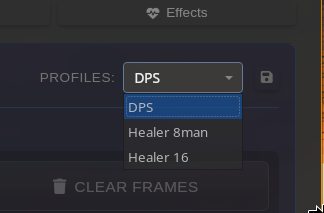
Section titled “Overlays Tab”Select a profile from the Profiles dropdown on the Overlays tab. All overlays will update immediately to match the selected profile’s settings.
Header Bar
Section titled “Header Bar”A compact profile dropdown in the header bar allows quick switching during gameplay without navigating to the Overlays tab.
Saving Changes to a Profile
Section titled “Saving Changes to a Profile”After making changes to your overlay layout or settings:
- Make sure the profile you want to update is selected in the dropdown
- Click the save icon (floppy disk) next to the dropdown
- Your current settings overwrite the active profile
Profile Behavior
Section titled “Profile Behavior”- Overlay visibility (shown/hidden) is independent of profiles and persists across profile switches
- Switching profiles immediately updates all running overlays
- The last active profile is remembered across app restarts
- If no profiles exist, BARAS uses default settings