Hotkeys
Hotkeys
Section titled “Hotkeys”BARAS supports global keyboard shortcuts that work even when the application is not focused, letting you control overlays while playing SWTOR.
Configure hotkeys in the Settings tab under the Hotkeys section.
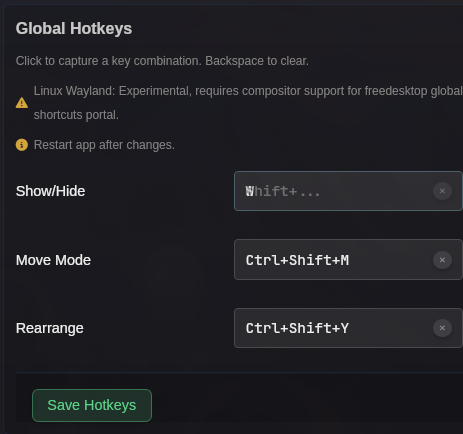
Available Hotkeys
Section titled “Available Hotkeys”| Hotkey | Action | Description |
|---|---|---|
| Toggle Visibility | Show/Hide Overlays | Toggles all enabled overlays between visible and hidden |
| Toggle Move Mode | Lock/Unlock Overlays | Enters or exits move mode for repositioning overlays |
| Toggle Rearrange | Rearrange Raid Frames | Enters or exits rearrange mode for reordering raid frame slots |
Setting a Hotkey
Section titled “Setting a Hotkey”- Click the hotkey input field — it will enter capture mode and display “Press a key…”
- Press your desired key combination (e.g.,
Ctrl+Shift+O) - The hotkey is saved automatically
While capturing:
- Modifier keys (Ctrl, Shift, Alt) show a live preview as you hold them (e.g.,
Ctrl+Shift+...) - Press Escape to cancel without changing the hotkey
- Press Backspace or Delete to clear the hotkey
- Click the x button next to an assigned hotkey to clear it
Supported Keys
Section titled “Supported Keys”- Letters (A-Z)
- Function keys (F1-F12)
- Arrow keys, Home, End, Page Up, Page Down
- Insert, Tab, Enter
- Any of the above combined with Ctrl, Shift, and/or Alt modifiers
Platform Notes
Section titled “Platform Notes”Windows & macOS
Section titled “Windows & macOS”Hotkeys are registered as system-wide global shortcuts and work immediately.
Linux (X11)
Section titled “Linux (X11)”Same behavior as Windows and macOS — global shortcuts are registered at the system level.
Linux (Wayland)
Section titled “Linux (Wayland)”Wayland uses the XDG GlobalShortcuts portal for hotkey registration:
- On first use, your compositor may show a permission dialog asking you to allow BARAS to register global shortcuts
- If the portal is unavailable, a notification will appear in the app explaining that hotkeys are not supported
- In that case, you can configure equivalent shortcuts directly in your compositor settings (e.g., Hyprland
bindrules) that call BARAS’s overlay toggle commands